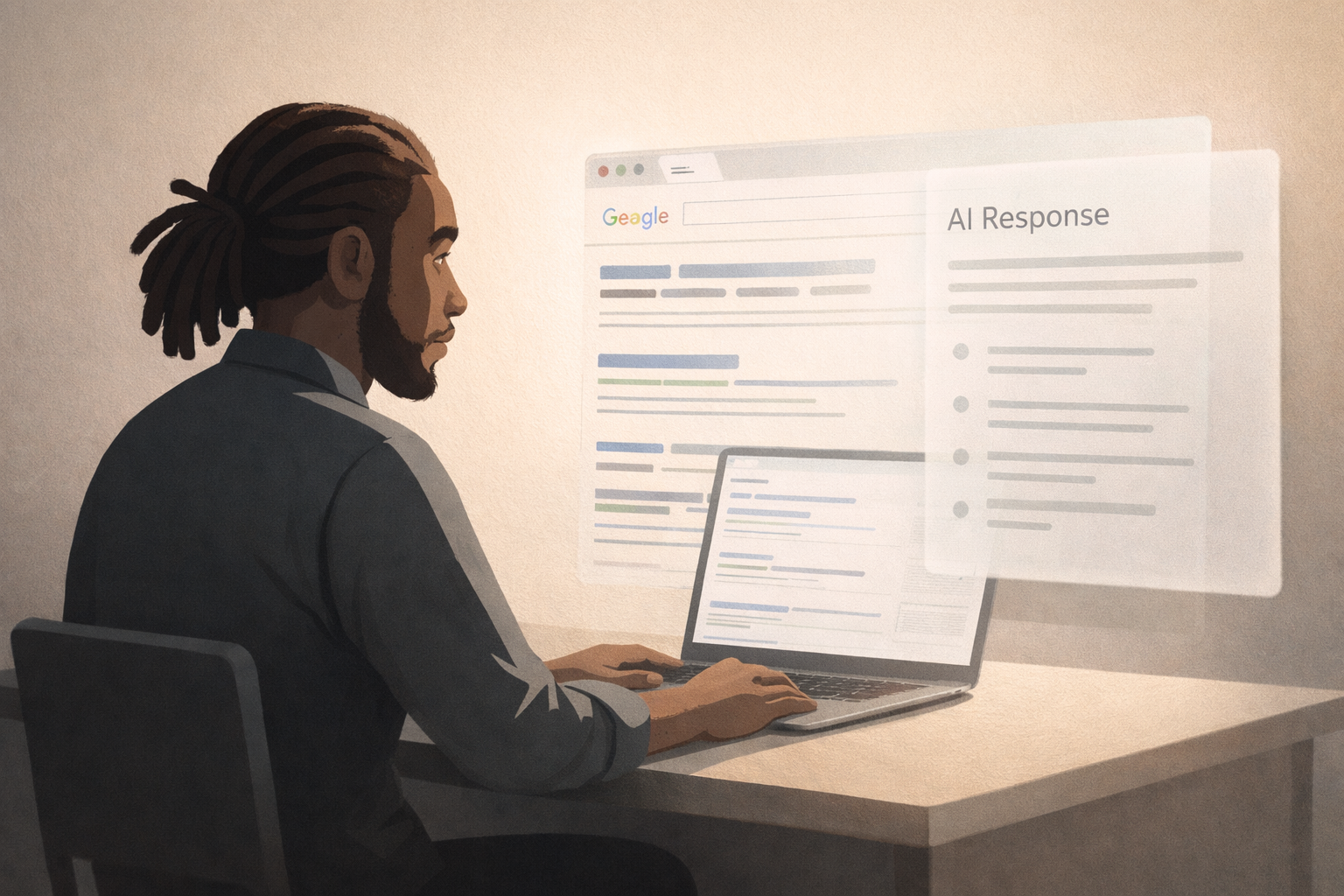
If you use AI every day, you probably don't hate AI.
I don't either.
What I do hate is when AI gets forced into workflows that were already fast, predictable, and efficient — especially when I didn't ask for it.
That's what Google AI Mode feels like right now.
Most of the time, when I search Google, I'm not looking for a detailed explanation.
I'm scanning. Navigating. Checking keywords. Opening known sites.
So when Google suddenly replaces that flow with an AI summary — or hijacks muscle memory like the Tab key — it's not helpful.
It's friction.
This article explains what Google AI Mode is, why it frustrates even AI power users, and whether you can actually turn it off.
What Is Google AI Mode in Search?
Google AI Mode is an AI-powered search experience built on Gemini.
Gemini isn't just powering Google Search. It's also quietly driving a broader shift in how Google thinks about AI interfaces, image generation, and multi-model workflows — including internal experiments like Google Antigravity.
Related Reading (For builders and power users)
Google Antigravity: Google's Quiet Experiment in AI Interfaces →
How Google is rethinking AI UX — and why it matters more than flashy model updates.
You Can't List Your Business on ChatGPT — But You Can Get It to Recommend You →
The B2B framework for answer engine optimization — schema, Bing index, llms.txt, and content architecture.
Instead of showing a traditional list of links, Google sometimes presents:
- an AI-generated summary
- blended answers from multiple sources
- a chat-style response layer before organic results
The goal is to:
- answer questions faster
- reduce clicks
- keep users inside Google longer
In theory, that sounds useful.
In practice, it often interferes with how people actually use search.
Google AI Overviews vs Traditional Search Results
Traditional Google Search works because it's scannable:
- headlines
- URLs
- quick relevance checks
- instant navigation
Google AI Overviews change that model.
Instead of scanning, you're forced to:
- read a paragraph
- trust a summary
- scroll past interpretation before seeing sources
That's fine for beginners.
It's frustrating for experienced users who already know what they're looking for.
Why Google Is Pushing AI Search So Aggressively
There are two main reasons.
1. Competition with Chat-Based AI
ChatGPT changed how people ask questions.
Google had to respond — and fast.
2. Control Over the Search Journey
AI summaries reduce outbound clicks and keep users inside Google's ecosystem longer.
From Google's perspective, that's a win.
From a user perspective?
Not always.
Why Google AI Mode Feels Slower for Power Users
Here's the core issue: context mismatch.
Most searches are not deep questions.
They're:
- navigation
- research scanning
- keyword checking
- finding a specific page
AI Mode assumes every query deserves an explanation.
That assumption is wrong more often than it's right.
Google AI Mode and Chrome: Why It Breaks Navigation Flow
This is the most frustrating part.
My normal workflow:
- Type a few characters
- Hit Tab
- URL autocompletes
- Hit Enter
- Done
Google changed that.
Now, hitting Tab can trigger AI Mode, pulling you into a Gemini summary instead of completing the URL.
Result:
- muscle memory breaks
- flow is interrupted
- tab gets closed
- trust decreases
That's bad UX — especially for people who search all day.
Can You Turn Off Google AI Mode?
Short answer: No — not completely.
Google does not currently offer a permanent toggle to disable AI Mode across all searches.
You can switch back to traditional web results per search, but that preference does not persist.
What You Can Do
- Switch back to "Web" results when prompted
- Avoid clicking AI Mode manually
- Adjust search behavior to reduce triggers
What You Can't Do
- Permanently disable AI Mode
- Restore the old Tab key autocomplete behavior
- Opt out account-wide
If you're looking for a simple "off" switch, it doesn't exist — yet.
How to Remove or Avoid AI Mode in Google Search (Workarounds)
Even though you can't fully remove AI Mode, you can reduce how often it disrupts your workflow.
1. Switch Back to Web Results
When AI Mode appears, manually return to standard results.
This works per query, but resets every time.
2. Avoid AI-Triggering Query Types
AI Mode appears more often for:
- question-style searches
- "how," "what," or "why" phrasing
- informational queries
Short, direct searches trigger it less.
3. Navigate Directly to URLs
If you know where you're going:
- type the domain
- use bookmarks
- skip search entirely
This bypasses AI Mode.
4. Click or Open Tabs Before AI Loads
Some users report fewer interruptions by:
- clicking quickly
- using Ctrl+Enter or middle-click
- opening results before AI Mode finishes rendering
Not elegant — but effective.
5. Use Alternative Search Engines for Research Tasks
For workflows involving:
- SEO research
- SERP scanning
- keyword discovery
AI-light search engines can be less disruptive — for now.
Is Google AI Mode Free to Use?
Yes.
Google AI Mode is currently free and included in standard Google Search.
There's no paid tier — but the cost shows up as:
- reduced control
- altered search behavior
- fewer organic clicks for creators
When AI Search Helps (And When It Doesn't)
To be fair, Google AI Mode does work well for:
- definitions
- beginner questions
- simple explanations
It struggles with:
- discovery
- research
- speed-based workflows
- users who already know what they want
The problem isn't AI.
It's AI without intent.
Of course, search isn't the only place where AI is being pushed aggressively. Image models are going through the same cycle — rapid releases, bold claims, and very real tradeoffs in quality and usability.
Related Reading (For builders and power users)
Nano Banana Pro vs GPT-5.1: Which AI Image Model Wins in 2025? →
A hands-on benchmark review comparing real outputs — not marketing claims.
The Bigger Trend: AI Search Is Becoming Default Everywhere
Google isn't alone.
Meta, Microsoft, and others are embedding AI directly into search by default.
This isn't optional anymore — it's the direction of the web.
That makes user control more important than ever.
Final Thought
AI should support workflows — not hijack them.
When I want an AI explanation, I'll ask for one.
When I just want links, speed, and control — get out of the way.
Until Google gives users a real off switch, AI Mode will feel less like help and more like interference.
Related Playbook Articles
Explore more AI workflow and search guides:
- How to Use Cursor AI in 2026: The Zero-BS Beginner's Guide
- GPT-5.1 vs Gemini 3: Which AI Model Is Better for Real Creative Workflows?
- The Worst Thing About Gemini 3 Pro (That No One Talks About)
- How to Use Gemini Notebooks in 2026 (The Context Bottleneck is Solved)
Need Help With Your AI Workflow?
At Lopez Productions, we help businesses build AI workflows that actually support productivity — not interrupt it.