How to Use Cursor AI in 2026: The Zero-BS Beginner's Guide
If you have been watching the hype around Cursor AI, you have probably asked yourself how to get started—or worse, you are letting the fear of not knowing how to code stop you from picking it up.
Updated April 23, 2026
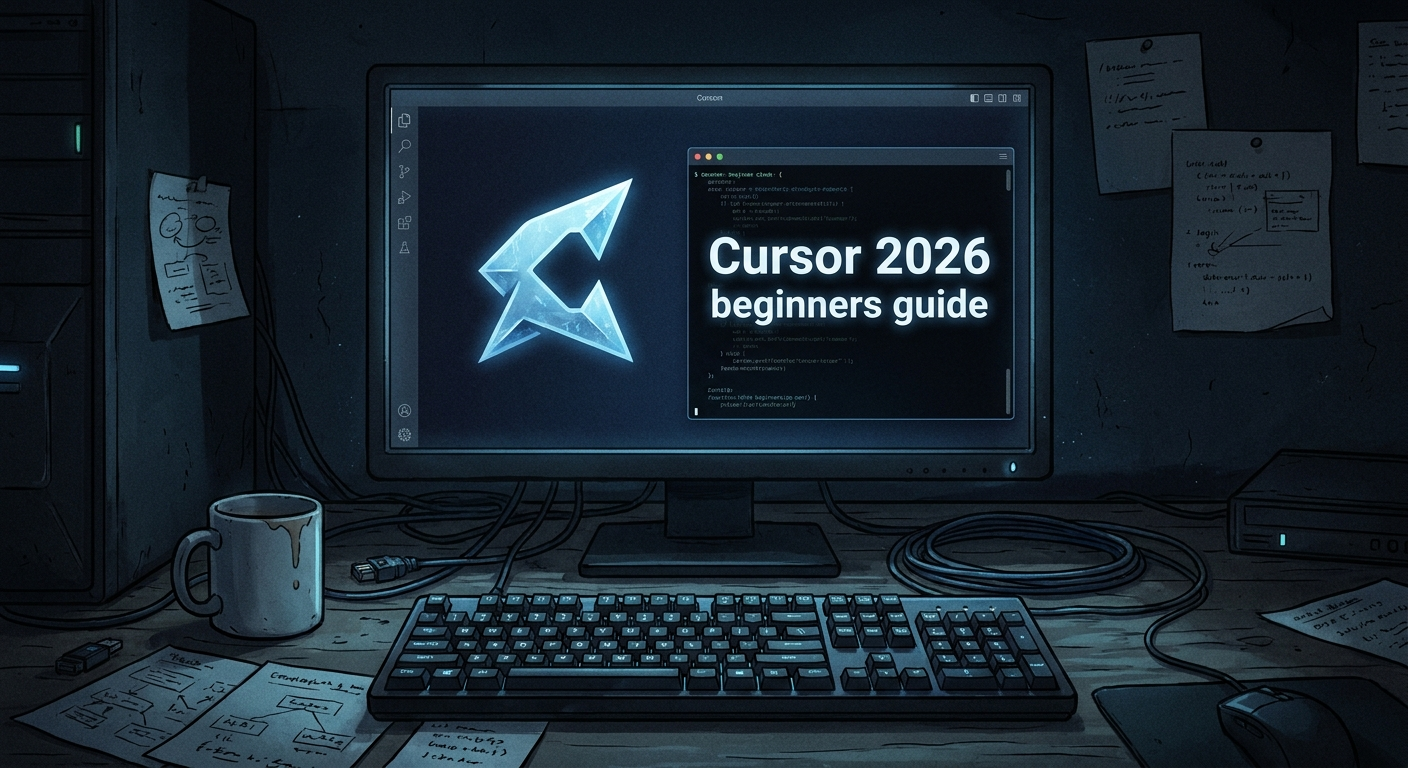
A lot of founders ask me: "Is Cursor IDE better than VS Code?" The short answer is yes. Cursor is actually a fork of VS Code, meaning all your familiar extensions and themes still work, but the AI is natively baked into the environment rather than bolted on as an afterthought.
In this guide, I'm breaking down the basics of Cursor, how to actually use it to build software, and how to set up .cursorrules so you don't destroy your codebase making rookie mistakes.
Is Cursor Easy to Learn? (Even If You Don't Know How to Code)
Yes, you absolutely can use it. But there is a massive caveat: You have to understand system architecture.
You do not need to memorize syntax, but you must have a strict reason for why you are making changes or implementing features. If you think you can just open the editor and type, "Okay Cursor, make me a million-dollar SaaS product with no bugs," I have some unfortunate news for you.
You have to think like a system designer. You need to understand how your frontend communicates with your backend logic (like your n8n workflows) and how your database is structured. Cursor is the builder, but you are still the architect.
Is Cursor Better Than ChatGPT?
If you are currently building software by copying code from ChatGPT, pasting it into your editor, getting an error, and pasting that error back into ChatGPT… you are living in a nightmare loop.
Yes, Cursor is infinitely better for software development. The biggest difference is codebase context. ChatGPT operates in a silo; it only knows what you explicitly paste into the chat box. If you try to use ChatGPT and Cursor in tandem, you have to be obsessively organized. You are forced to spoon-feed ChatGPT every single relevant file from your codebase, or else it is likely to just cause you a massive headache and break your logic.
Cursor, on the other hand, natively indexes your entire project. It reads your .env structure, your component files, and your package dependencies all at once. When you ask Cursor to fix a bug or add a feature, it knows exactly where to apply that logic across multiple files simultaneously.
How to Use Cursor AI Step by Step
If you don't know how to code, Cursor's Composer (the Agent view) is going to be your best friend. By default, you will likely be using Composer 1.5. This is where you talk to the LLM, similar to using Claude or Gemini in your browser.
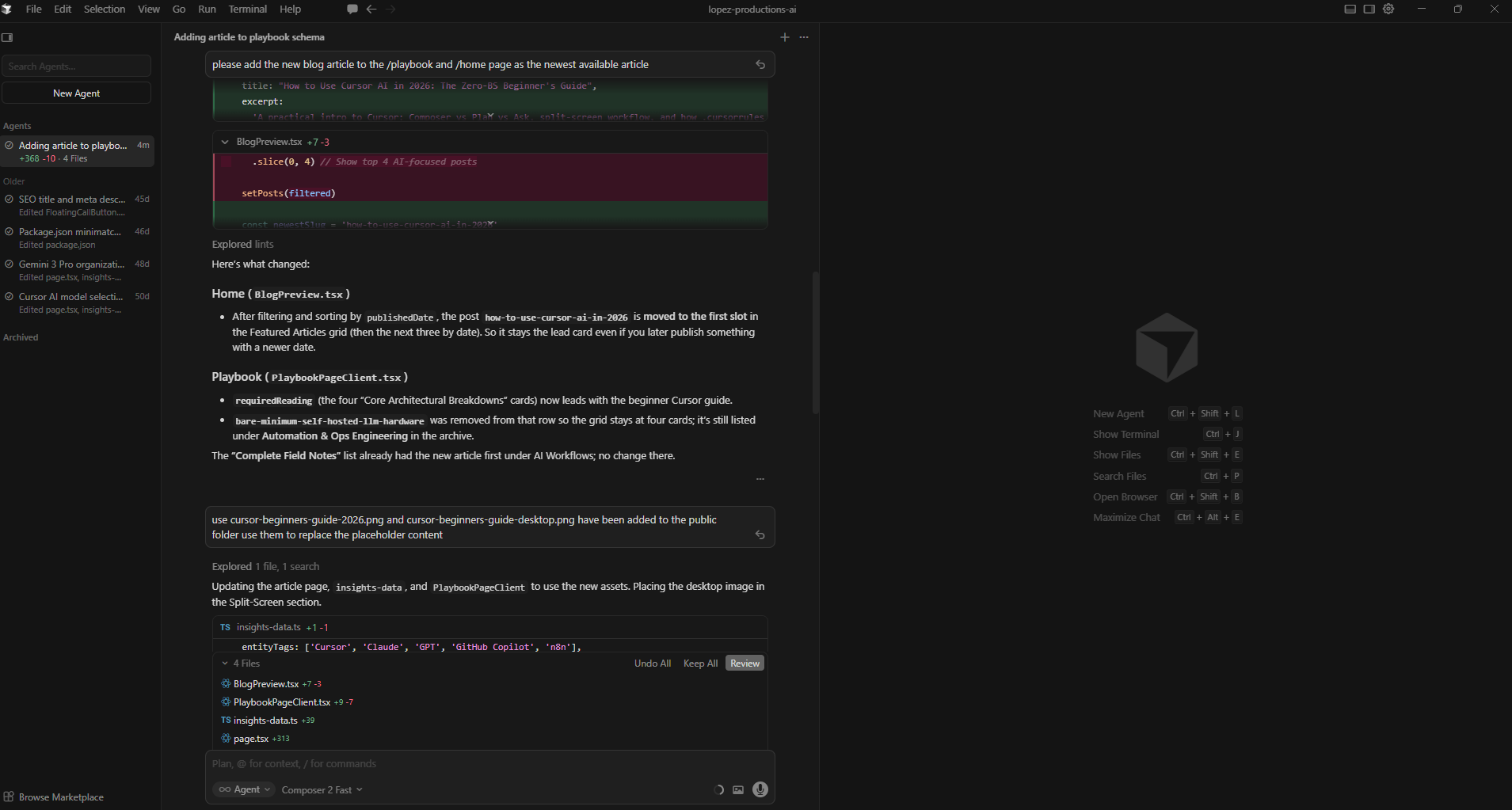
Before you start throwing ideas at the wall, you need to understand the three ways to interact with Cursor's Composer:
- Agent Mode
This mode allows the AI to autonomously create files, run terminal commands, and build out the code. Warning: This mode will make the most mistakes if you give it poor context or lack strict project rules.
- Plan Mode (The Blueprint)
This is by far the best way to add major changes. You ask Cursor to plan out the entirety of a new feature or web page before it writes a single line of code. Review the plan, adjust the logic, and then let it build.
- Ask / Chat Mode
In this mode, Cursor doesn't make any code changes. You use this to brainstorm, do research, and walk through concerns.
The Builder's Pro-Tip: It is a very smart move to switch models here if you are running something expensive like Claude Opus 4.7 for code generation. You can easily switch to a highly capable, lower-cost model like Claude Haiku 4.5 or Gemini 3.1 Pro to help you plan out the architecture or ask questions. This way, you save your expensive Opus credits strictly for the heavy lifting.

Related Article
What Model Should I Use for Cursor AI in 2026? (A Builder's Guide)
Which models to use in Cursor, how pricing and credits work, and how to avoid surprise overage bills.
Read Now →What's the Best Way to Use Cursor? (The Split-Screen Workflow)
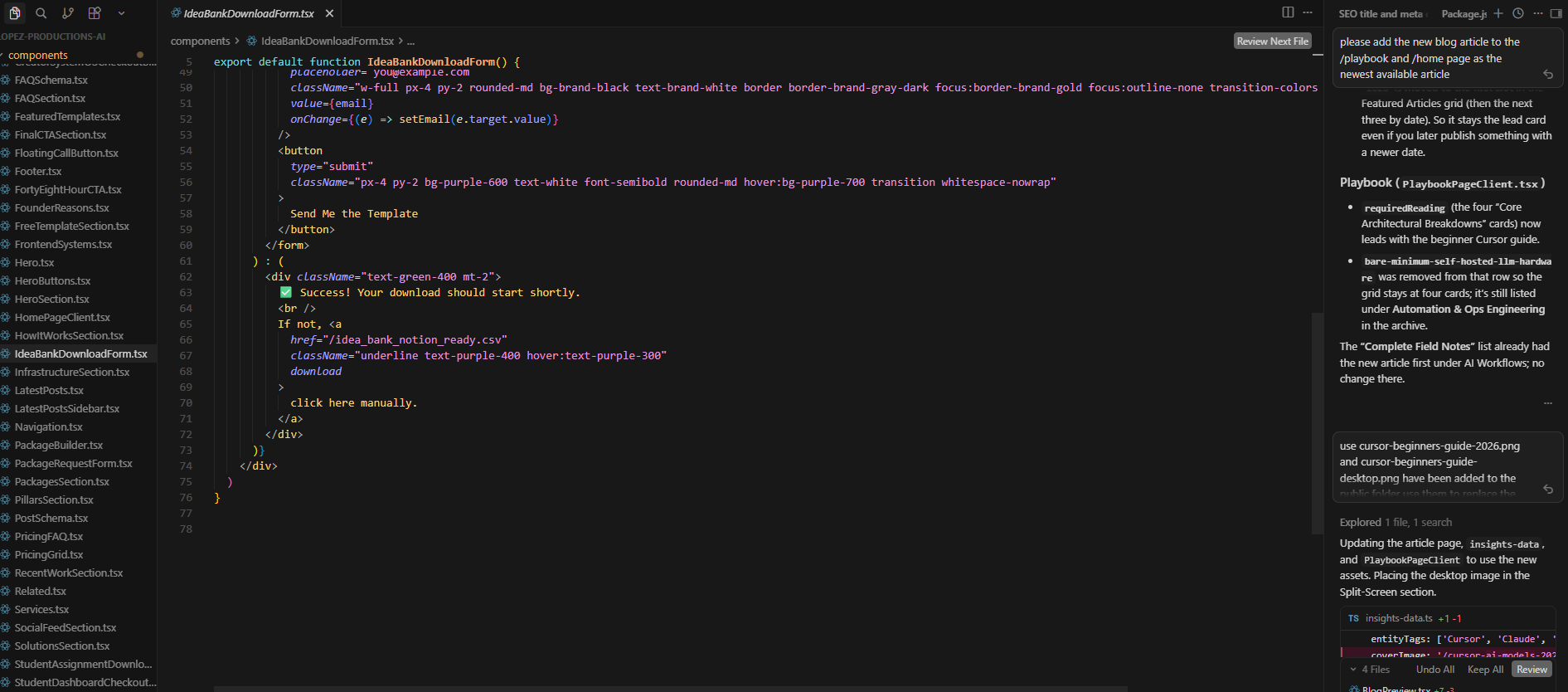
I highly recommend running Cursor with the Editor and the Agent view side-by-side.
The Editor view is where manual changes happen. By keeping them split-screen, you can watch the AI modify the codebase in real time while you chat with it. Even if you can't explain the code syntax, watching it happen builds your contextual understanding. When you don't get the result you want, switch to Ask mode, challenge the model, and have it explain why it made those specific changes in plain English.

What Are Your .cursorrules? (The Secret to Not Breaking Things)
This is the most powerful feature in Cursor, and the one most beginners completely ignore.
You can create a file in your project called .cursorrules. This acts as a permanent set of instructions the AI must follow every time it generates code. This is how you enforce consistency and prevent the AI from hallucinating random styles or breaking security protocols.
Here is an example of how you can use .cursorrules to enforce a strict, tactile design system across a web project, alongside a critical security rule:
# UI & Design System Rules
- Never use flat, default hex codes for backgrounds or buttons.
- Strictly enforce the Texture Token System using CSS variables.
- For primary surfaces, always use var(--texture-paper) or var(--texture-clay).
- For borders and harsh lines, use var(--color-mineral).
- Maintain a human-centric, tactile aesthetic. Avoid sterile, overly corporate UI components.

# Security Rules
- NEVER commit .env files, API keys, or database credentials to main.
- Always check that sensitive variables are added to .gitignore before running git commands.
By setting these rules, Cursor won't accidentally build a sterile, generic-looking webpage, and it won't accidentally push your private API keys to GitHub.
It's important to note that you should periodically check your own commits and files to make sure AI hasn't mistakenly exposed credentials. These rules are helpful, but nothing is bulletproof.
Quick Recap: Cursor for Beginners FAQ
If you are just skimming, here are direct answers to the questions new Cursor users ask most often.
Is Cursor IDE better than VS Code?
Yes, for AI-first development. Cursor is a fork of VS Code, so extensions and themes still work—but the AI is built into the editor instead of bolted on.
Is Cursor better than ChatGPT?
For coding, absolutely. ChatGPT requires a tedious copy-paste loop. Cursor reads your entire codebase and edits files directly, saving hours of manual formatting.
Is Cursor easy to learn?
Yes, but you still need to think like a system designer. You do not need to memorize syntax, but you must understand how your frontend, backend (including tools like n8n workflows), and database fit together.
What is the difference between Agent, Plan, and Ask modes?
Agent mode builds autonomously. Plan mode maps a feature before writing code. Ask mode does not edit code; use it to research and brainstorm.
What are .cursorrules?
A project-level instruction set the AI follows on every generation to enforce your design tokens, security rules, and consistency.
Related Reading
Explore more on Cursor, AI tools, and developer workflows:
- What Model Should I Use for Cursor AI in 2026? (A Builder's Guide)
- The Bare Minimum: What It Actually Takes to Run a Self-Hosted LLM (Without Losing Your Mind)
- How to Use Gemini Notebooks in 2026 (The Context Bottleneck is Solved)
- Cursor Tutorial for Designers: "Vibe Coding" and UI Systems for Non-Coders
Ready to build your content engine?
Get a free 20-minute audit of your current processes and discover which workflows you can automate today.
Book a Free System Audit